For our second prototype project, we were tasked to create a Space Invaders game.

Link to the game: https://qkayy.itch.io/pigeon-invader

The Space Invader clone that I made centers around the player trying to throw bread at pigeons.
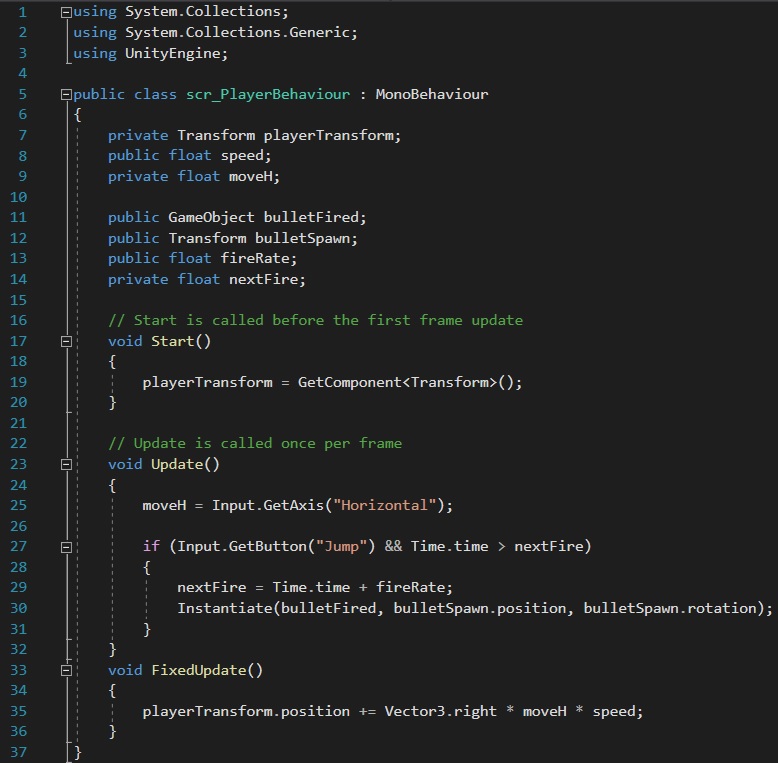
The first few scripts I needed to create are the movements for the player and the projectiles that the player fires.
In order to make the player move, I needed the transform component which essentially records the current position of the 2D object. As the game first runs, the script will grab the transform component at the very start. To actually get the player moving, I needed to add another line of code but this time in “void Update()” function.
“Input.GetAxis(“Horizontal”);” (Unity, 2022) takes the axis from the “Input Manager” within Unity and allows the player to move horizontally with the default keys (A,D/ left and right arrow keys). However, these lines of code only grabs the transform component; so, in order to get the player moving I needed to create a float variable called speed which, given a number, will allow the player to move at a certain speed.
As for the projectiles, I included an if statement. By adding “Input.GetButton(“Jump”)” (Unity, 2022) makes the statement true if the button within the quotations marks is held down, so in this case, “Jump” would be spacebar. When spacebar is pressed, this allows the player to fire projectiles. Furthermore, to ensure that the projectiles were able to shoot at a reasonable standard, two float variables was added to the code, “fireRate” and “nextFire”. The fireRate was created as a public variable which enables me to alter the number through Unity which made it easier to quickly change the speed of the projectiles to my liking. But to get the projectiles working properly, it is necessary for me to add the game object to the script so that the code understands where the projectile will be fired from.
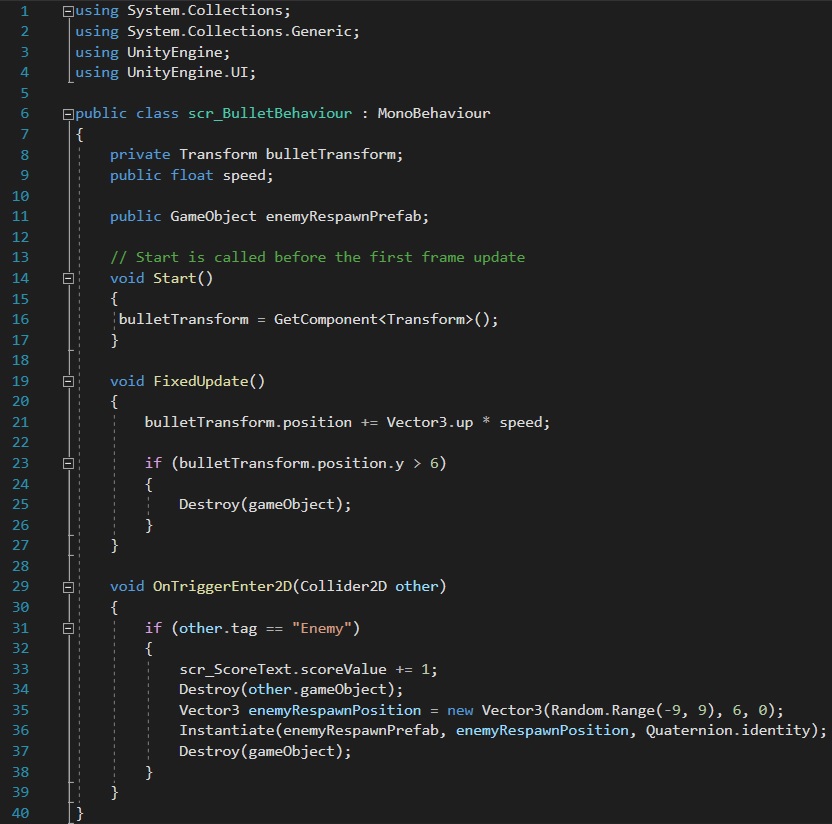
Once the projectile spawning script was finished, I needed to create another script that covers the behaviour of the projectile. The script shown on the left enables the bullet to destroy game objects that are labelled with the tag “Enemy”. The way in which this works is with the function “OnTriggerEnter2D”; with this, Unity looks for objects that are tagged with “Enemy” and effectively destroys the object upon collision.
However, even though the projectile destroys the enemy, the enemy will not respawn due to there not being written code for it. In order for the enemy to respawn, I needed to create a GameObject variable. Within the “OnTriggerEnter2D” function, I implemented the respawn variable at a “Random.Range” between the x and y coordinates of “(-9, 9), 6, 0)”; these coordinates were picked because they were outside the range of the camera, meaning they would respawn from outside the screen so that they would not appear suddenly within the game.
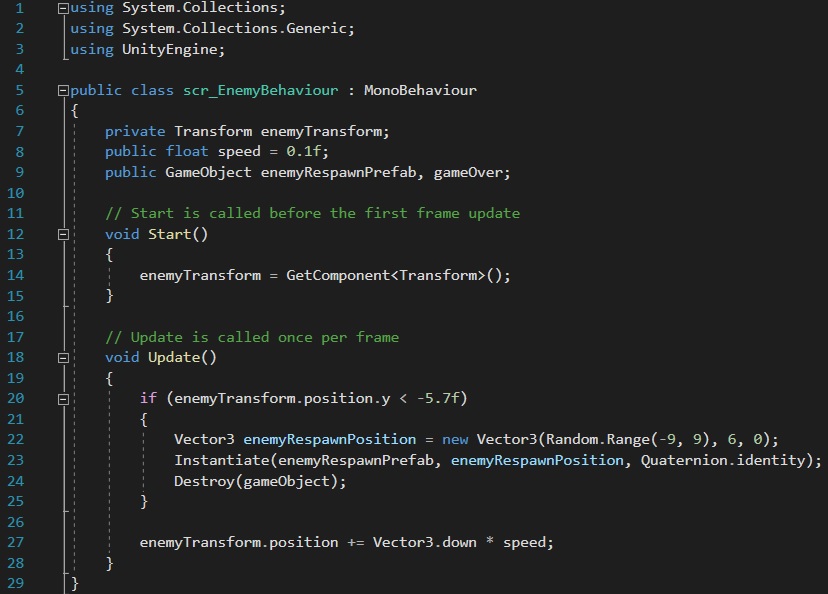
Once the player and projectile scripts were finished, I needed to create a script for the enemy (right). Similar to the player behaviour script, I needed the transform component to grab the position of the enemy. Once this has been created as a variable, I added an if statement which destroys the enemy if the player fails to kill them and the enemy moves out of the screen. As the variable holds the current position of the enemy, all I needed to do was to ensure that the enemy respawns if “y” coordinate is “< -5.7”.
After the basic scripts were created, I decided to add extra features to my Space Invader clone. The features which I included are health and score.
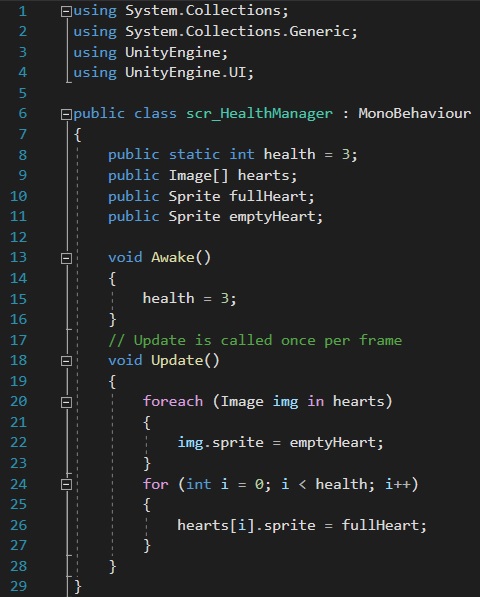
As shown in the previous scripts there are some references to health, such as when the enemy hits the player they will lose one heart. The screenshot shown on the left is the script which controls the health of the player.
To begin with, I needed to create a static integer variable that holds the information of how much health that the player has, in this case the player has 3. As this health script references the sprites used, I would need to implement them into the script.
Within the update function, I added a foreach loop (Unity Technologies, 2022). To elaborate, the code states that for each image within the hearts element of the game it will be changed to the image that contains the empty heart sprite. Another loop is needed to complete the health script. The “i” in the following lines is an iteration of the “for loop”. The loop essentially means that the code will continue to loop unless the hearts equals to 0.
For the health script to work, a code is needed to be added to the collision script of the player (below). The if statement references the health script “scr_HealthManager” and the variable “health”. To elaborate, once the enemy collides with the player the script activates, “scr_HealthManager.health–;” removes one heart from the player. The following if statement of “<=0” means that if the player’s health is less than or equal to 0 then the variable “isGameOver” becomes true.
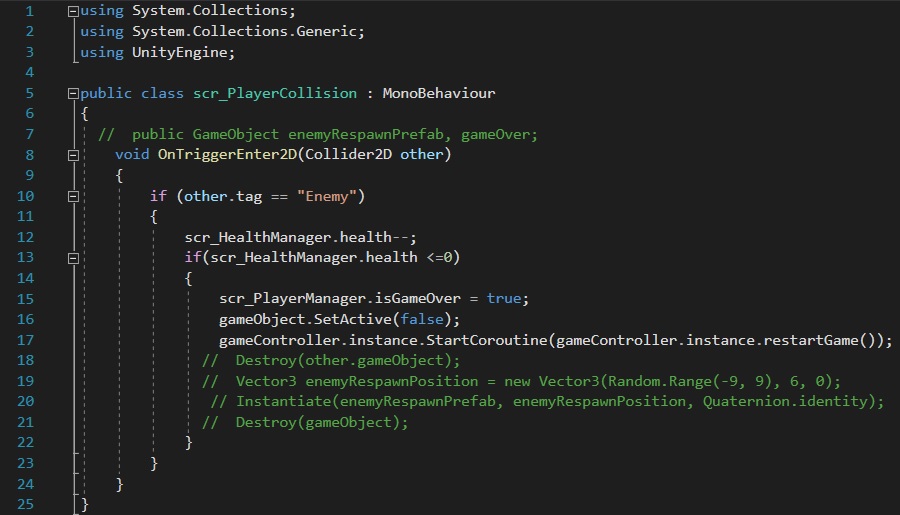
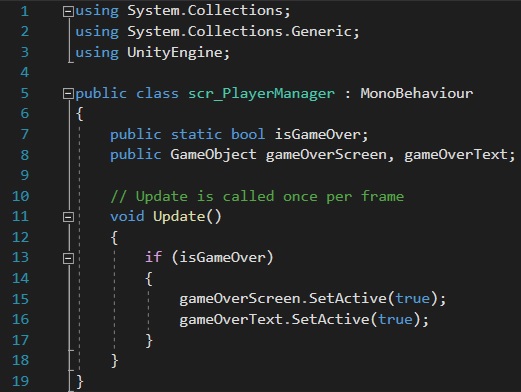
The variable “isGameOver” activates once the player loses all of their health. When this variable becomes true, a game object within Unity also becomes true. In this case, my two game objects are the background for the game over screen and the text. Once the variable activates, the game over background and text is overlayed on top of the game.
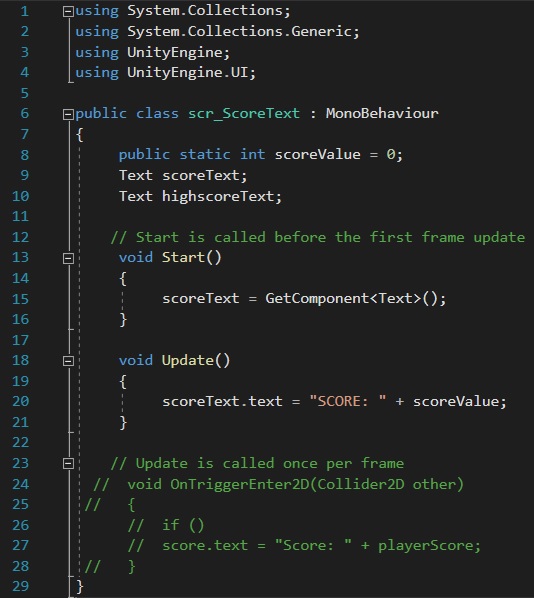
As for the second feature for the game, I added a score counter which counts the number of enemies that the player has killed. This script is fairly simple as similar codes were used such as “GetComponent”, but rather than getting the component for transform this time it’s text.
Similarly to the health script, the score script has also been referenced within other scripts such as scr_BulletBehaviour. Within that script, once the projectile collides with the enemy 1 is added to the score.
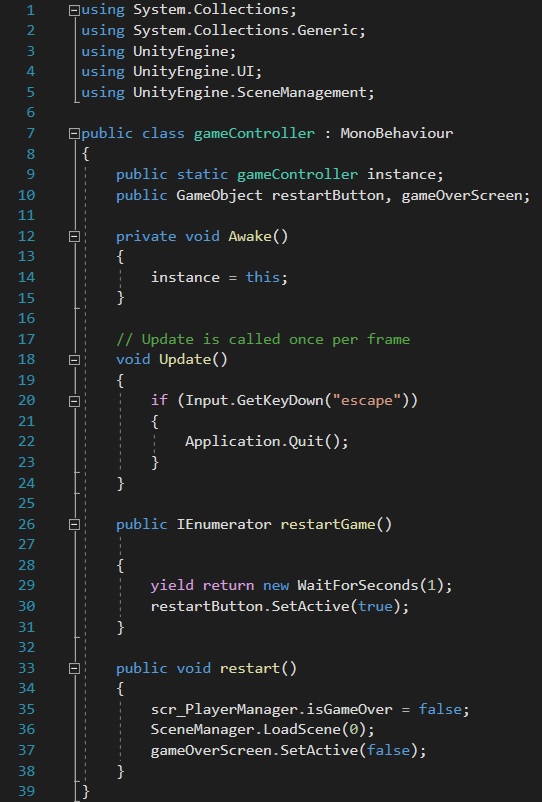
One final feature for our game to work in sync another script is a game controller script, this is needed to enable the player to restart the game. In order to do this, I need to use the “StartCoroutine” function (Unity, 2022) (Rudra Gesota, 2018) which is referenced in the “scr_PlayerCollision” script; the way in which coroutine works is that once it has been activated, it pauses execution and then resumes after a set amount of seconds (Unity, 2022). In this case, the coroutine begins when the player has lost all their health which triggers the “restartGame” variable; this results in the coroutine waiting for 1 second before displaying the restart button.
To activate the restart button, I created a new variable called “restart” which allows me to attach the script to the restart button and enables the player to restart the game on click. The “restart” variable disables “isGameOver” and reloads the scene (scene 0 as I only have one scene in this game) and deactivates the game over screen.
During the process of creating the Space Invader clone, I came across numerous problems with different health scripts as I struggled to find one that worked with my game.
For further improvements to the game, I would have liked to add a background to the main game and more audio. I feel as though the music added to the game was not enough and that audio such as sounds activating upon collision would have made the game more interactive and enjoyable. Moreover, the game feels a little plain as the background is just white, so a background would definitely make it feel more complete.
Overall, I am happy with the outcome and very satisfied that my health script works in the game!
References Used:
Unity (2022) Input.GetButton. Available online: https://docs.unity3d.com/ScriptReference/Input.GetButton.html [Accessed 24/11/2022].
Unity (2022) Input.GetAxis. Available online: https://docs.unity3d.com/ScriptReference/Input.GetAxis.html [Accessed 24/11/2022].
Unity Technologies (2022) Loops – Unity Learn. Available online: https://learn.unity.com/tutorial/loops-z2b#6356b161edbc2a0adbfbf98f [Accessed 24/11/2022].
Rudra Gesota (2018) Mastering Coroutines in Unity in 10 mins. Available online: http://www.theappguruz.com/blog/how-to-use-coroutines-in-unity [Accessed 24/11/2022].
Unity (2022) WaitForSeconds. Available online: https://docs.unity3d.com/ScriptReference/WaitForSeconds.html [Accessed 24/11/2022].
Unity (2022) MonoBehaviour.StartCoroutine. Available online: https://docs.unity3d.com/ScriptReference/MonoBehaviour.StartCoroutine.html [Accessed 24/11/2022].
Font Used:
https://www.dafont.com/bread-crumbs.font