
For our third prototype game, we were tasked to create a Top-Down Shooter.
Link to the game: https://qkayy.itch.io/red-panda-shooter

My inspiration for the top-down shooter is the animal red panda. The enemy sprites that I created were inspired by the natural predators of the red pandas, these include:
- Martens
- Snow leopards
- Hunters
To begin my top-down shooter game, I created 2D game objects and attached them together and created it as a prefab for the player. I also needed to add an empty game object for the projectile location; an empty object was specifically chosen as the projectile will not show until it has been spawned/activated by the code.
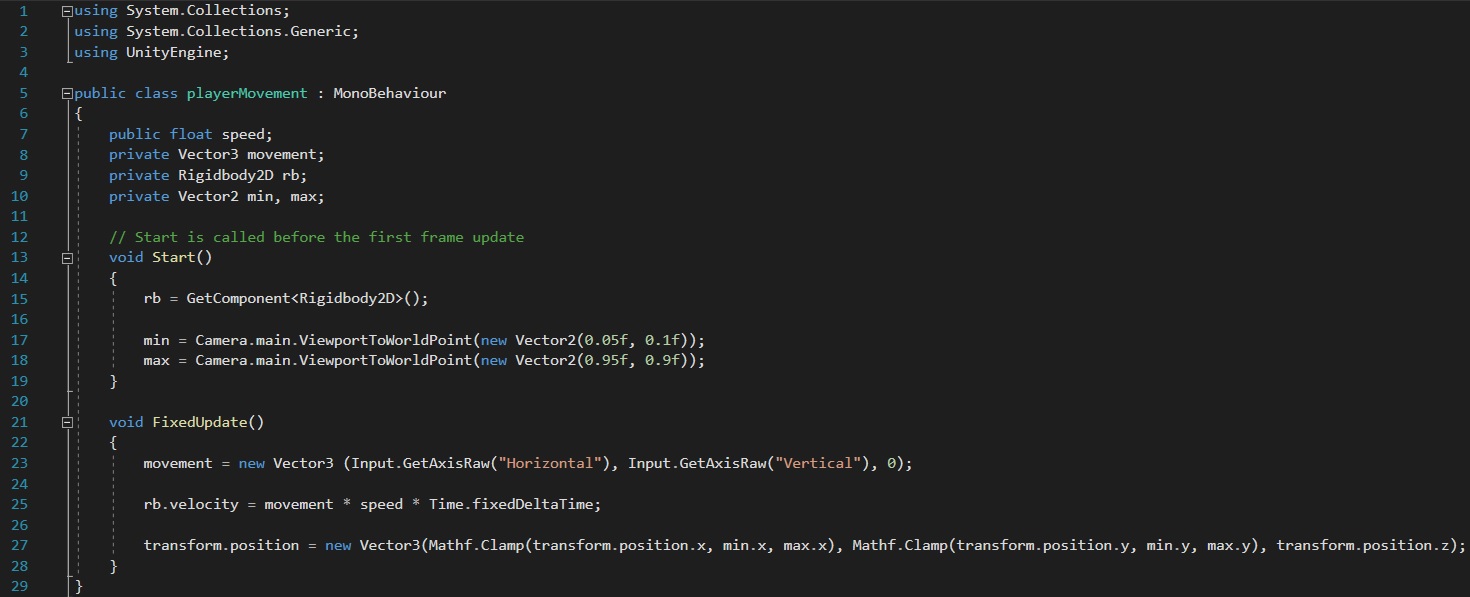
Once the player has been created, the first few scripts that were needed are the movements, aim and shoot for the player.
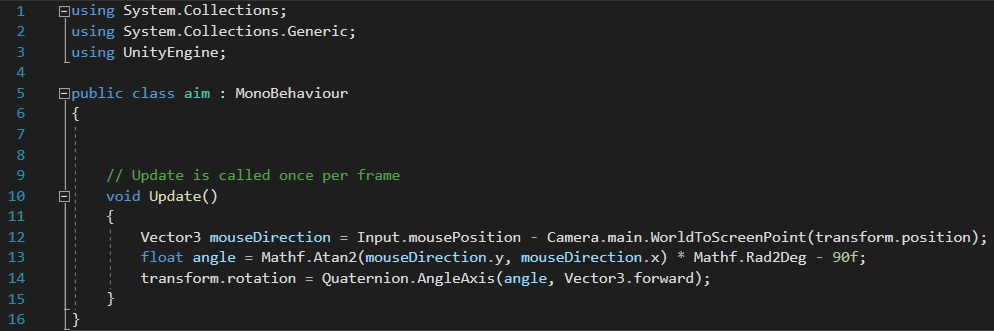
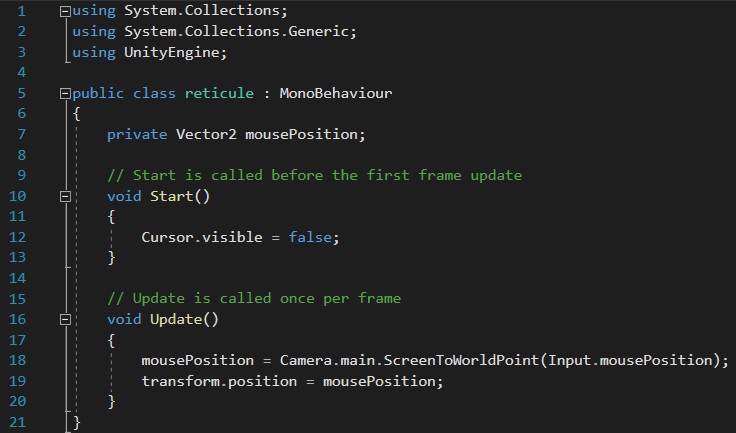
During the process of creating the “aim” script, I was able to learn about “Input.mousePosition” and “Camera.main.WorldToScreenPoint” (Unity, 2022). Together, “Input.mousePosition” and “Camera.main.WorldToScreenPoint” records the position of the cursor on the screen (the WorldToScreenPoint converts the current world space position to screen space).
In order to get the aim working, it is necessary to add an angle variable so that the player is able to rotate in all directions (360°); to do this, a float variable is created with the “Mathf.Atan2” function (Unity, 2022). This function converts the radians of the game object within unity to degrees. So within the brackets of this function, it grabs the x and y coordinates of the mouse’s current position and multiplies it by 360°/(PI * 2) (Mathf.Rad2Deg) (Unity, 2022) and subtracts 90. After the position of the cursor has been located, “Quaternion.AngleAxis” takes these recorded variables and rotates around the noted angle variable around a 360° axis (Unity, 2022).
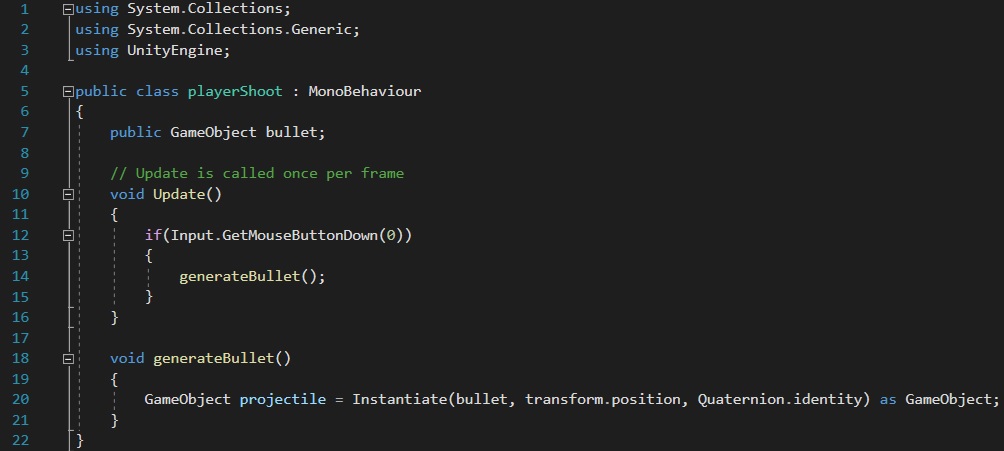
After the aim script follows the “playerShoot” script; this script allows the player to shoot the generated projectiles if the player clicks the left mouse button (within the input manager, left click is shown as 0). To generate the projectile, the function “Instantiate” is needed (Unity, 2022); combined with “as GameObject”, this creates the attached object and duplicates the said object.
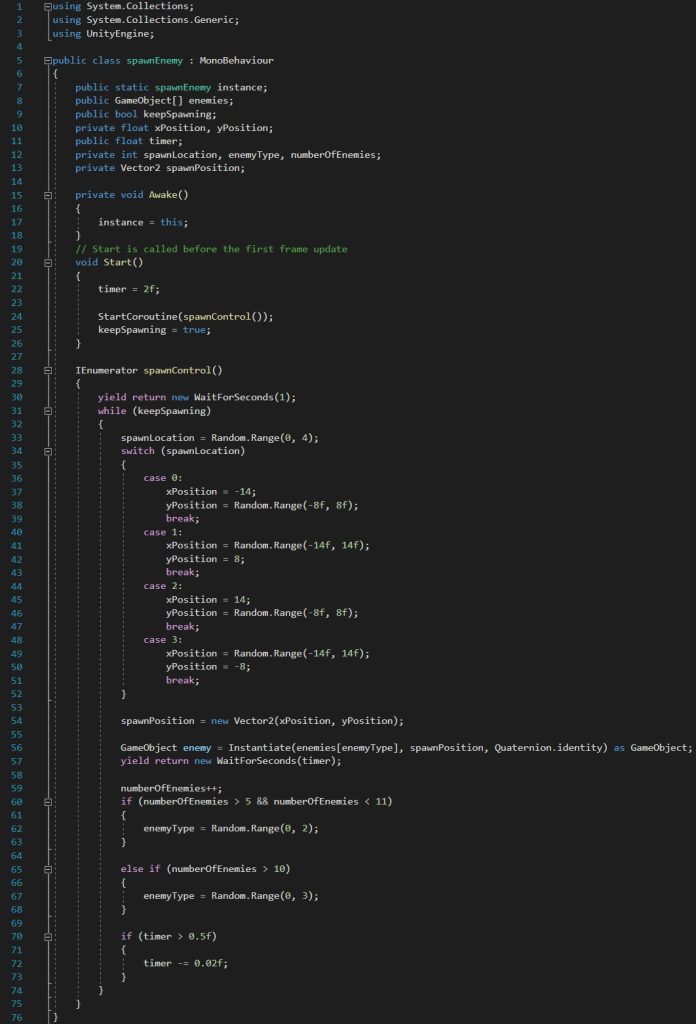
The spawning for this prototype is slightly different compared to the Space Invader clone. For instance, we want the enemy to spawn at random locations around the game. To do this, a coroutine is needed. In this case, I included a bool variable (keepSpawning) to keep the enemy spawning constant. The switch function (Unity Technologies, n.d.) is essentially another form of an if statement but complies the different circumstances together; in this case, the switch function within this script generates different cases (0-3) which allows the enemy to spawn at one of the four randomly generated cases between the two x and y coordinates within the case that has a “Random.Range” function.
One enemy was not enough, so I added two more. Within the next yield return function, it has been coded so that the two other enemy sprites would spawn randomly alongside the first enemy.
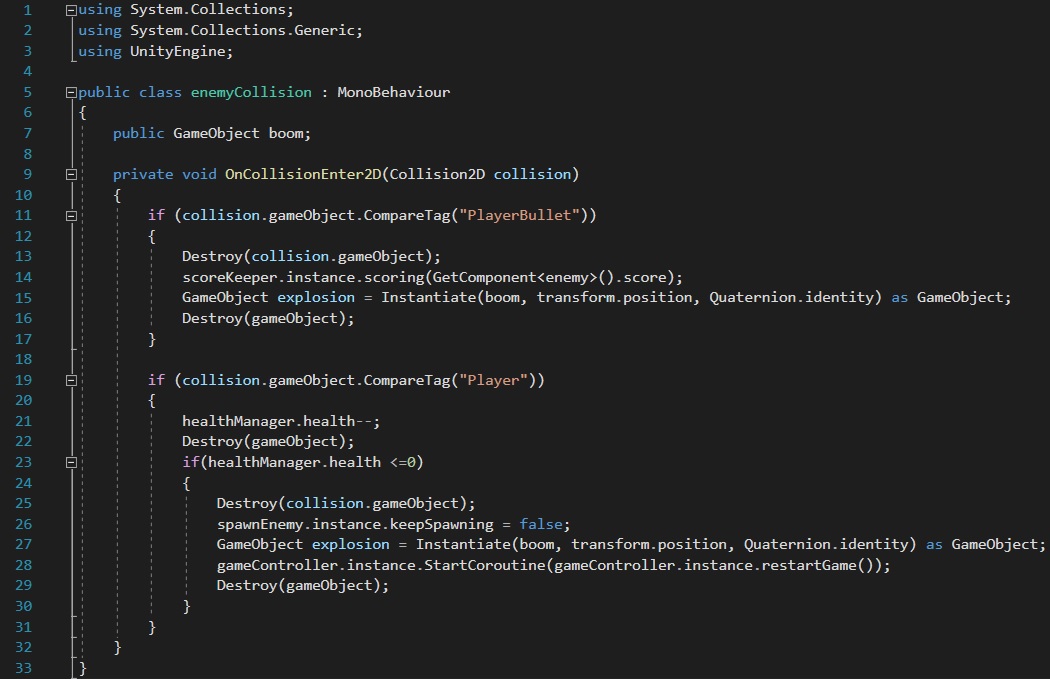
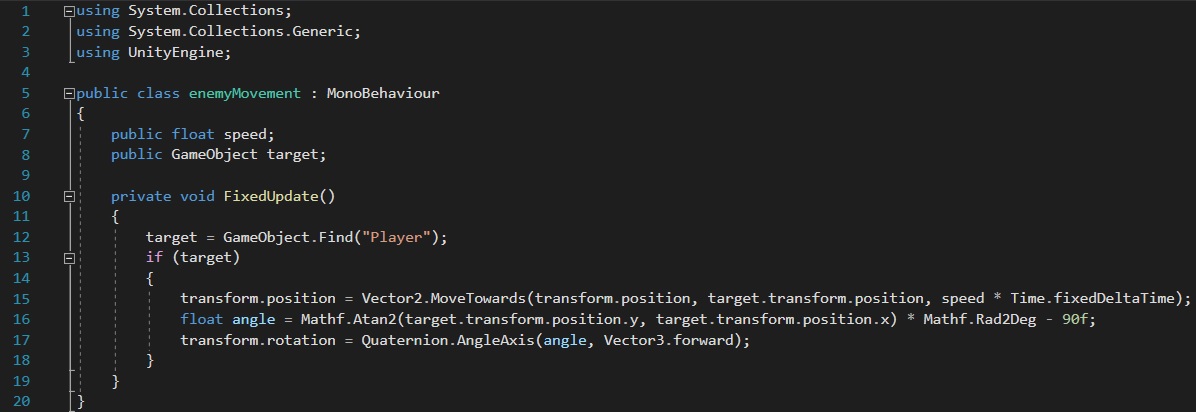
For the enemies, I needed to add an enemy movement and collision script. To ensure that the movement script works alongside the player, I implemented a game object variable which informs Unity to find the game object with the tag “Player”. When the script is attached to the enemy prefab, the if statements calls for the “target” variable and moves the enemy towards the player.
The original code only had the enemy move towards the player without rotation. So to try to solve the issue with the enemy not rotating in the direction of the player, I attempted to copy the “Mathf.Atan2” function from the aim script; unfortunately, although the enemy rotates it is not accurately facing the player majority of the time.
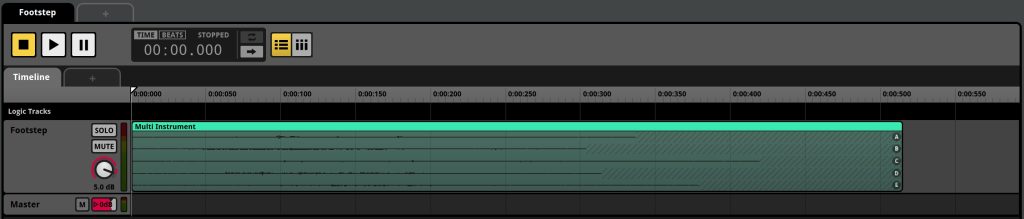
As for the audio, I decided to incorporate footstep sounds from FMOD to sync with the movements of the player. Within the FMOD software, I created a multi instrument audio of footstep sounds; this makes it so that each time the event is activated a different sound within the event is played.
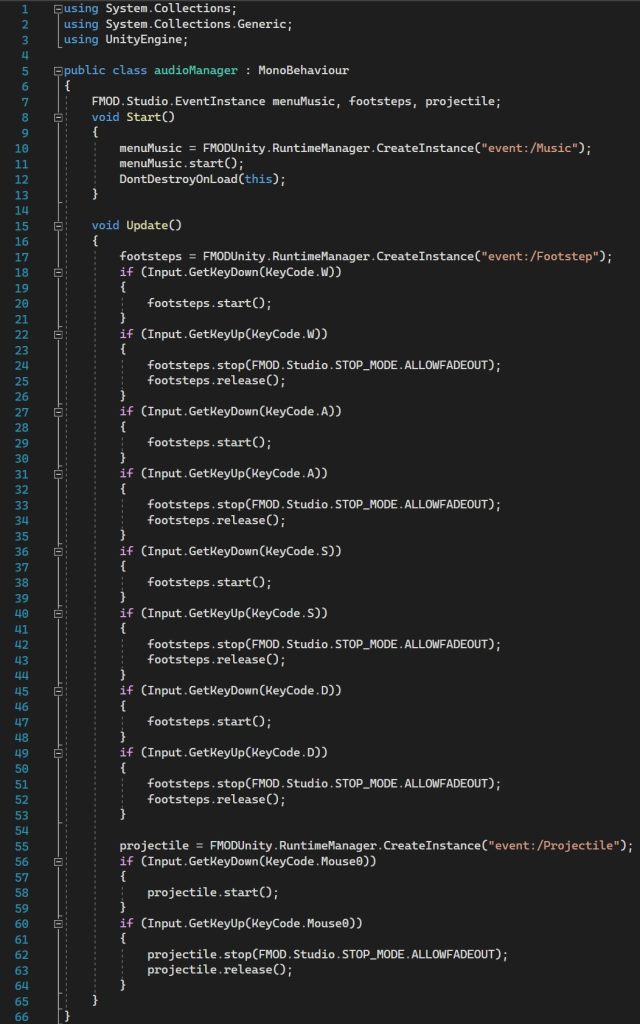
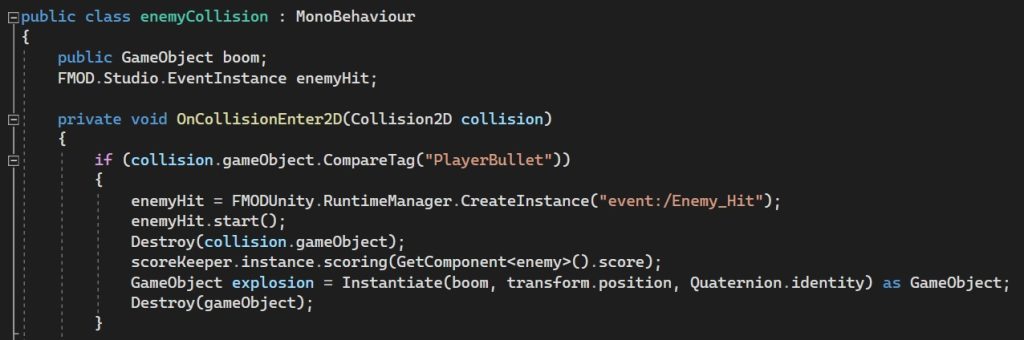
In order to make the footstep audio play, I used the “Input.GetKey” function so that when the key is pressed the audio will start and once the key has been released the audio stops (Neoja, 2022). Similarly, with the audio for the collision of the projectile into the enemy, I added the same line of code to the “enemyCollision” script but I altered the path directory to the correct audio.
For further improvements, I believe that creating a working enemy movement script would make the game run more smoothly because the enemies do not properly face the player when they are moving towards them. Another improvement would be to add a background to the main game.
Overall, compared to the previous prototype games that I had created, I am quite satisfied with the outcome of this one due to the audio I had implemented within this game.
Reference Used:
Neoja (2022) FMOD new instance flow is not working. Audio & Video. 24 March. Available online: https://forum.unity.com/threads/fmod-new-instance-flow-is-not-working.1257567/ [Accessed 22/11/2022].
Unity (2022) Input.mousePosition. Available online: https://docs.unity3d.com/ScriptReference/Input-mousePosition.html [Accessed 24/11/2022].
Unity (2022) Camera.WorldToScreenPoint. Available online: https://docs.unity3d.com/ScriptReference/Camera.WorldToScreenPoint.html [Accessed 24/11/2022].
Unity (2022) Mathf.Atan2. Available online: https://docs.unity3d.com/ScriptReference/Mathf.Atan2.html [Accessed 24/11/2022].
Unity (2022) Mathf.Rad2Deg. Available online: https://docs.unity3d.com/ScriptReference/Mathf.Rad2Deg.html [Accessed 24/11/2022].
Unity (2022) Quaternion.AngleAxis. Available online: https://docs.unity3d.com/ScriptReference/Quaternion.AngleAxis.html [Accessed 24/11/2022].
Unity (2022) Object.Instantiate. Available online: https://docs.unity3d.com/ScriptReference/Object.Instantiate.html [Accessed 24/11/2022].
Unity Technologies (n.d.). Available online: https://learn.unity.com/tutorial/working-with-switch-statements# [Accessed 24/11/2022].
Font Used:
https://www.dafont.com/little-bamboo.font